
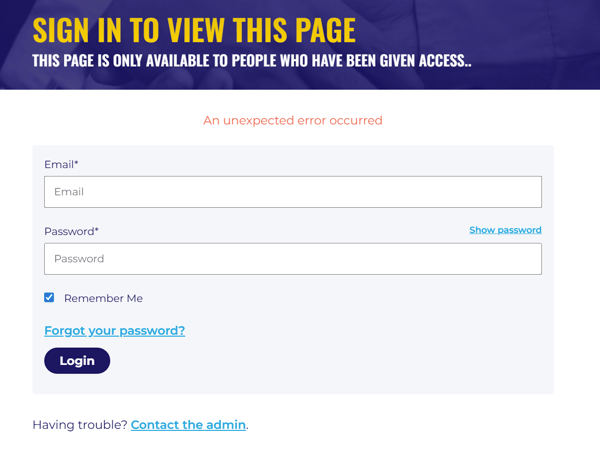
If you get an unexpected error as shown in the first image below the easiest way to correct this is to open an incognito window in your browser or try using a different browser.
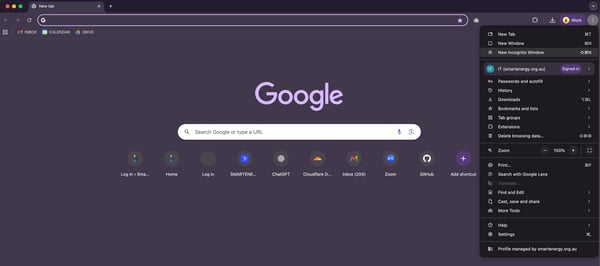
To open an incognito window in Google chrome see the image below.
- Click the browser setting menu represented by the 3 dots in the top corner of the browser.
- Select 'New Incognito Window'
- Copy and paste the link to login.
If using another browser a Google search should provide you with the answer.
You can also try doing a hard reset of your browser to wipe any temporary cahce files from the browser.
Hold down 'CTRL+SHIFT+R' on a windows computer or COMMAND+SHIFT+R on a Mac with the active browser tab. This will tell the browser to return to the webserver and get the most up to date files for the site.
These actions should correct the unexpected error.